 SynthMock
Bring a little color to your workspace.
MacBook Neo
mockup generator.
Create MacBook Neo mockups in Silver, Blush, Citrus or Indigo. Add a website or app layout, adjust the lid and camera, and build a desktop product visual with personality.
Try the editor. A paid plan is required to export images and videos.
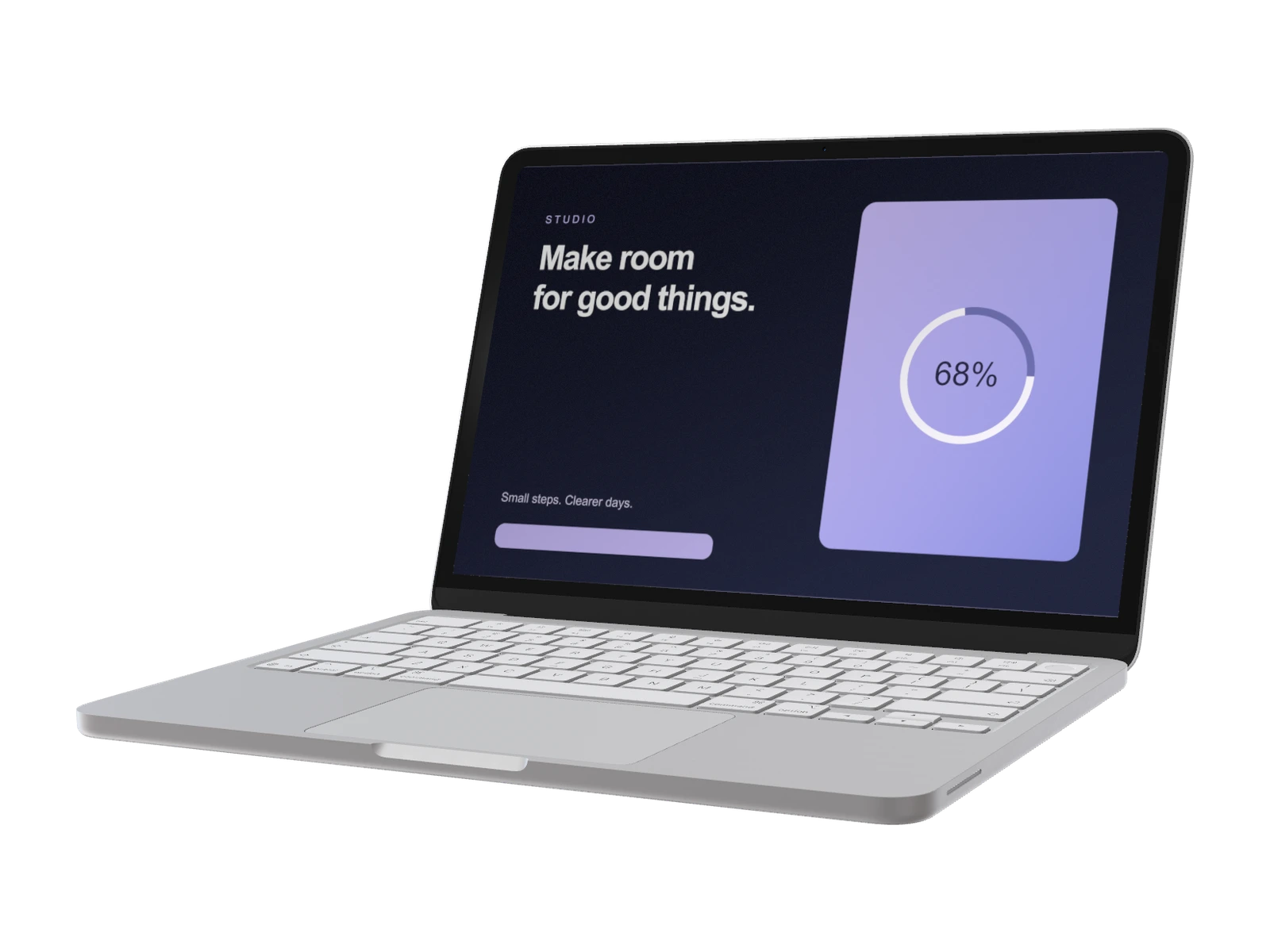
Made for this model
Start with the right canvas.
- Recommended artwork
- 2408 × 1506 px
- Available finishes
- Silver, Blush, Citrus, Indigo
Artwork dimensions are width × height for the default SynthMock screen layout. They describe the mockup canvas, not the device's physical display specifications.
Useful for
- Creative website launches
- Colorful brand presentations
- Desktop app campaigns
Your scene, your decisions
Find a considered angle.
Choose a colored finish as the scene's accent. Keep the laptop open enough for the interface to read, and use the surrounding negative space for a product headline or supporting copy.
- Camera rotation, position and framing
- Lighting, reflections and backgrounds
- Adjustable lid: 0°–135°
Create in your browser
From your screen to the scene.
- 01
Open MacBook Neo
The create button selects this model in the editor. Choose Silver, Blush, Citrus, Indigo to complement your artwork.
- 02
Add your interface
Upload a sharp screenshot at 2408 × 1506 px for the default canvas. Refine the crop, camera and lighting until the important details read clearly.
- 03
Finish your presentation
Choose a background and output dimensions. Use a paid plan to export a PNG, JPEG or WebP image, or build an animated sequence in the web editor.
Choose with confidence
Compare MacBook mockup options.
| Model | Artwork dimensions | Finishes |
|---|---|---|
| MacBook Neo | 2408 × 1506 px | Silver, Blush, Citrus, Indigo |
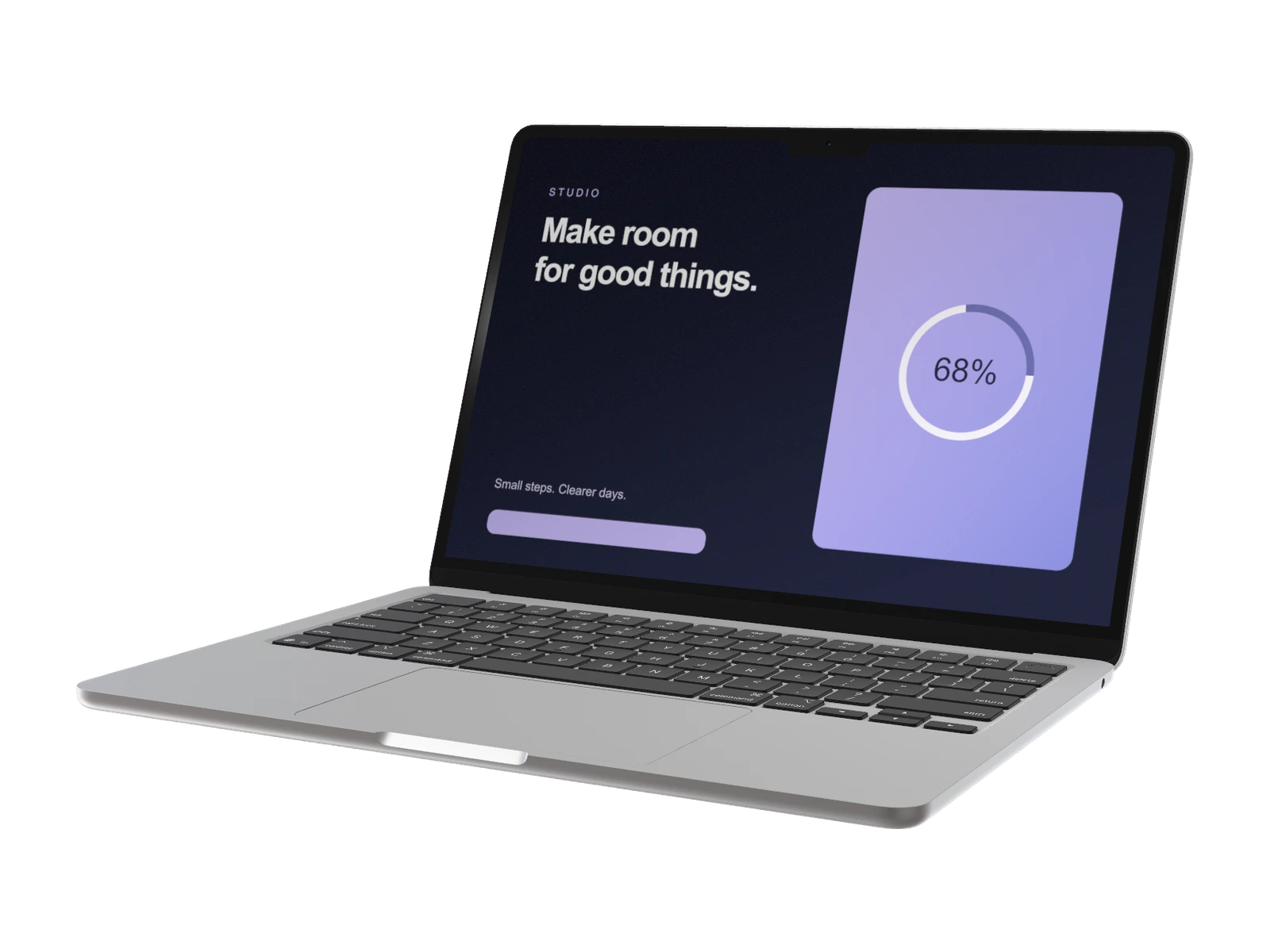
| MacBook Air 13-inch | 2560 × 1664 px | Silver, Midnight, Starlight |
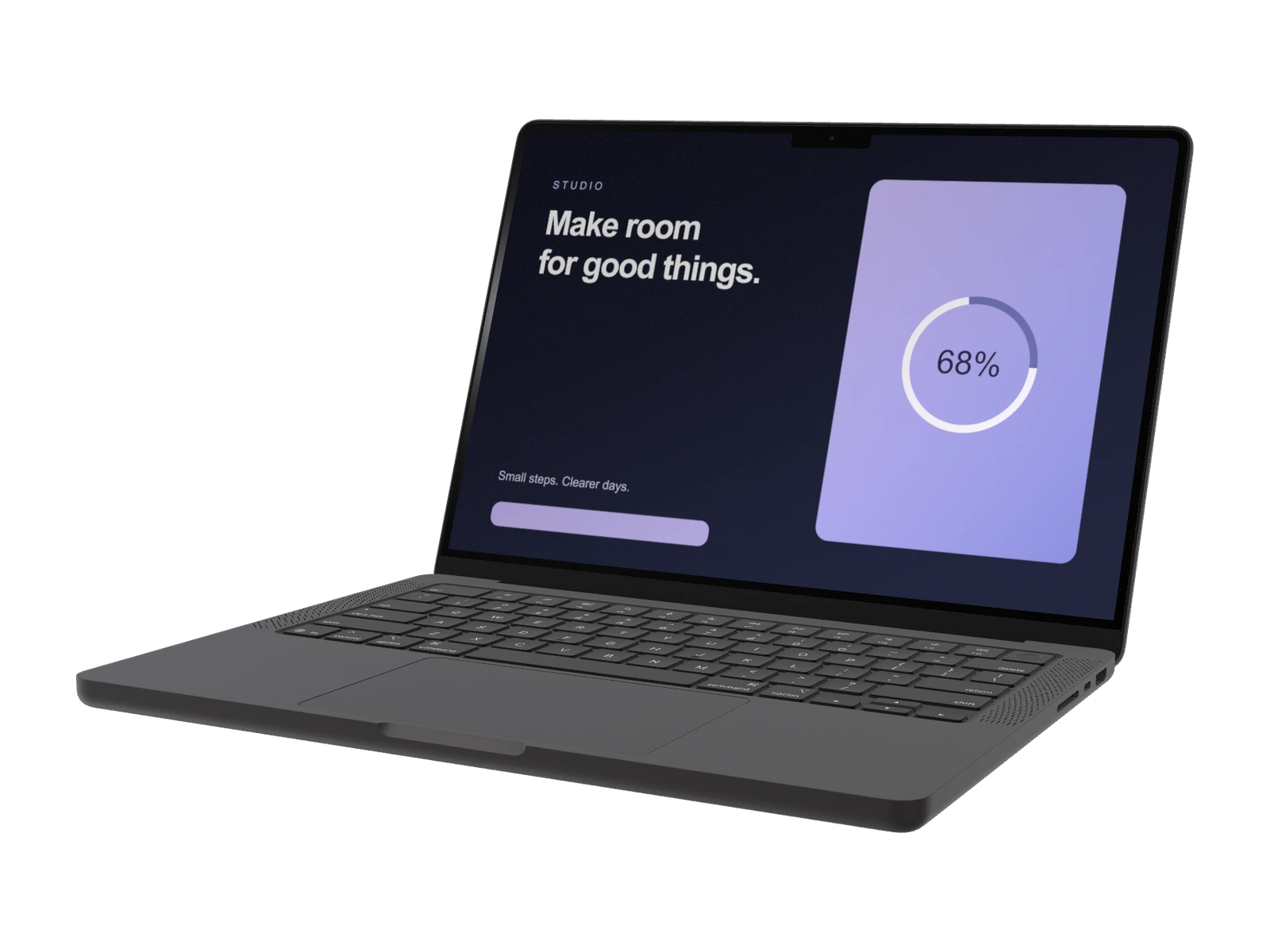
| MacBook Pro 14-inch | 3024 × 1964 px | Space Black, Silver |
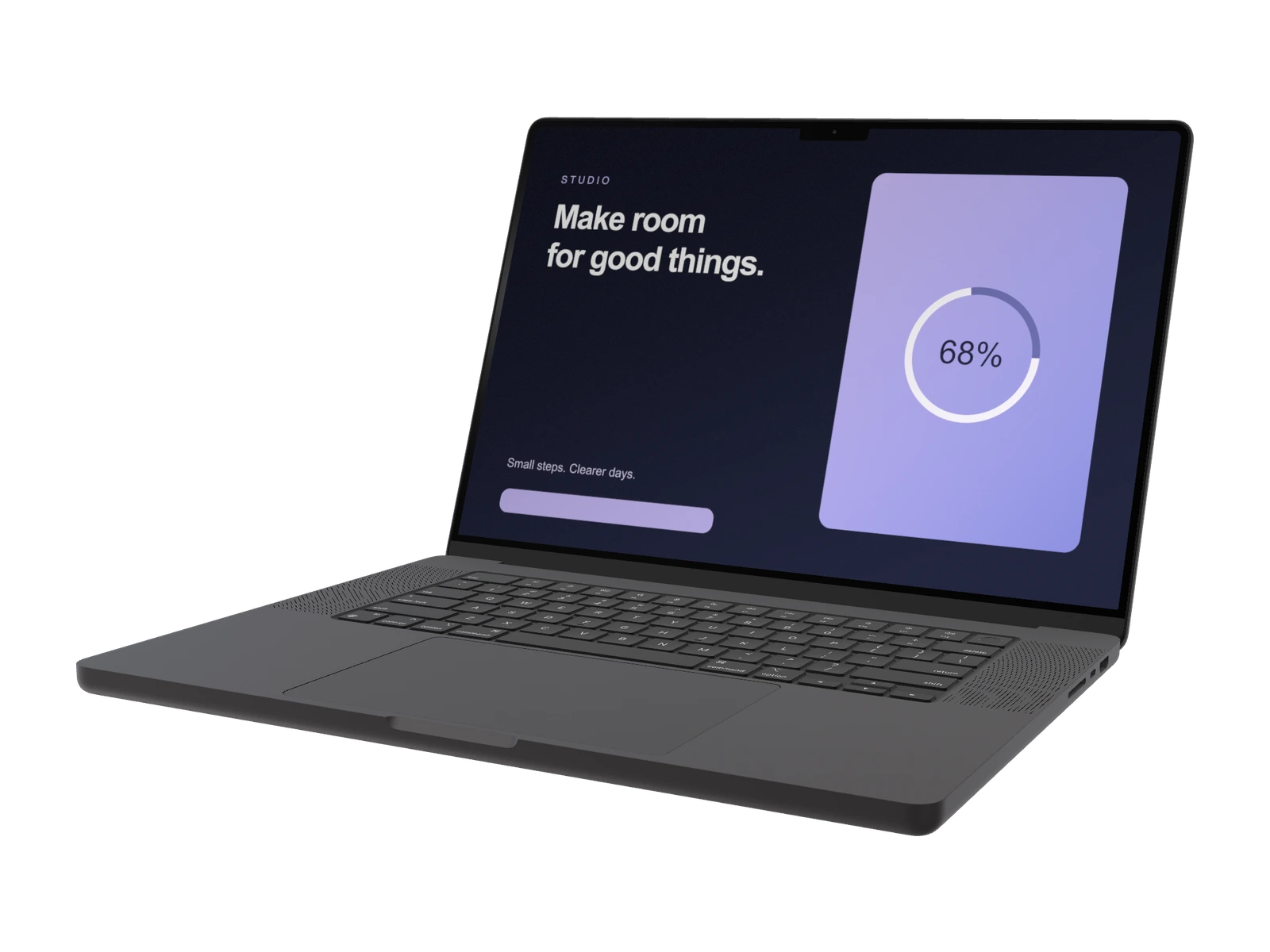
| MacBook Pro 16-inch | 3456 × 2234 px | Space Black, Silver |
| MacBook Pro M3 16-inch (2024) | 3456 × 2234 px | Titanium, Silver, Matte Black |
Good to know
Before you create.
How do I create a MacBook Neo mockup?
Open the MacBook Neo model in SynthMock, add your screen artwork and adjust the camera, body finish, lighting and background. A paid plan is required to export the finished image or video.
Can I adjust the MacBook Neo lid?
Yes. The lid control spans 0°–135° in SynthMock. Start from the default 110° position and refine it with the camera angle; a nearly closed lid works for a reveal, while an open view showcases your screen.
What image size works best for MacBook Neo?
Prepare artwork at 2408 × 1506 px, width × height, for the default screen layout. These are recommended dimensions for the SynthMock mockup canvas, not hardware specifications. Check the crop after changing orientation and use a sharp source image so interface text remains readable.
Which MacBook Neo finishes are available?
This SynthMock model offers Silver, Blush, Citrus, Indigo. Choose your finish in the editor, then adjust the lighting to make the device edge distinct from the background.
Can I use this mockup in a product video?
Yes. The SynthMock web editor supports multiple shots and animated camera movement. Start with a clear still composition, then add motion to showcase your interface. A signed-in account with a paid plan is required for image and video exports.
Keep exploring
Another angle on your work.
Make it your own
Your next MacBook Neo mockup starts here.
Bring your artwork. Shape the scene. Create a visual that makes your product the focus.