 SynthMock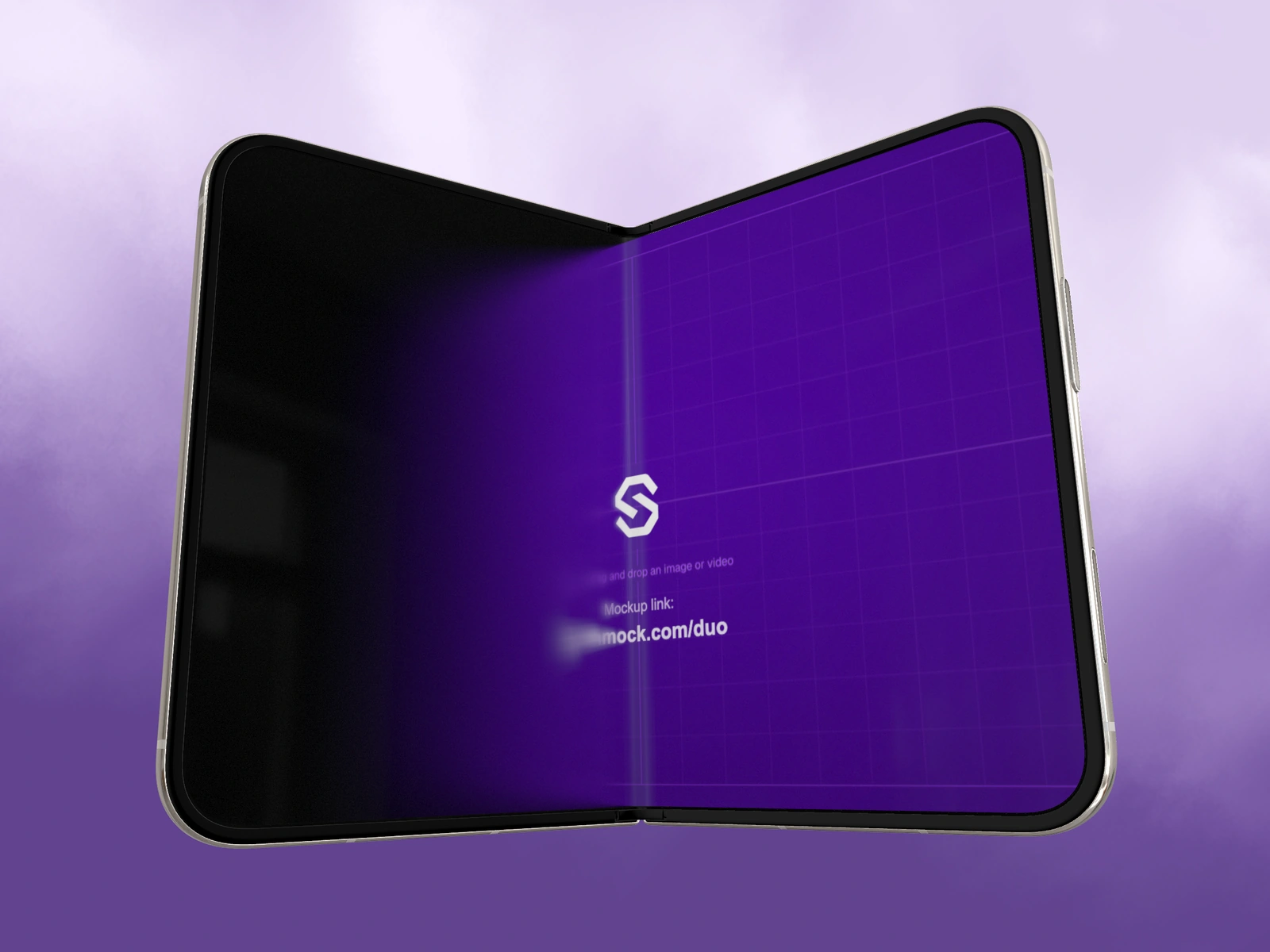
FOV changes perspective. Zoom changes framing. Use them together deliberately when you want depth without making the phone feel distorted or the interface hard to read.
Try it in SynthMock
Start with a Duo scene.
Use a reusable template as your starting point, then apply the choices in this article.
A paid plan is required to use templates and export.
Separate perspective from size
FOV is the camera’s field of view. In SynthMock’s Camera controls it ranges from 10° to 100°. A wider field of view can emphasize differences between near and far surfaces; a narrower view can make the composition feel more restrained.
Changing FOV can also change how much of the device occupies the canvas. That makes an unfair comparison easy: you may prefer the larger image rather than its perspective. Reframe with Zoom after each change so you compare a similar device size.
Use a side-by-side decision process
Choose a partial fold or three-quarter pose with clear near and far edges. Keep the source artwork, fold angle, background and lighting fixed while evaluating the camera.
- Note the current FOV and Zoom values.
- Try a narrower FOV, then adjust Zoom to restore a comparable frame occupancy.
- Inspect the relative size of near and far corners, camera rings and screen edges.
- Try a wider FOV and repeat the framing adjustment.
- Choose the view that explains the form while keeping the app’s important controls readable.
Keep dramatic perspective purposeful
A bold angle can work for an establishing frame, but detailed UI may benefit from a calmer view. Avoid placing the closest device corner so near the viewer that the inner interface becomes a sliver behind it.
If the model appears clipped, check Zoom and Pan before deciding the perspective is wrong. If a FOV edit occurs within a timeline effect, inspect both Start and End; a perspective change across the shot can feel like a different kind of move from a simple orbit. Export a representative still to judge proportions without the distraction of live dragging.
Final pass
Before you call it finished
- FOV choices were compared at similar device size.
- Perspective does not hide the key interface.
- Any FOV change during motion is intentional.
Make the next version yours.
Explore Duo templates ↗