 SynthMock
The SynthMock field guide
From a screen
to something worth showing.
Practical lessons for two screens, precise movement and light that makes the material feel real. Start with Duo, then make it your own.
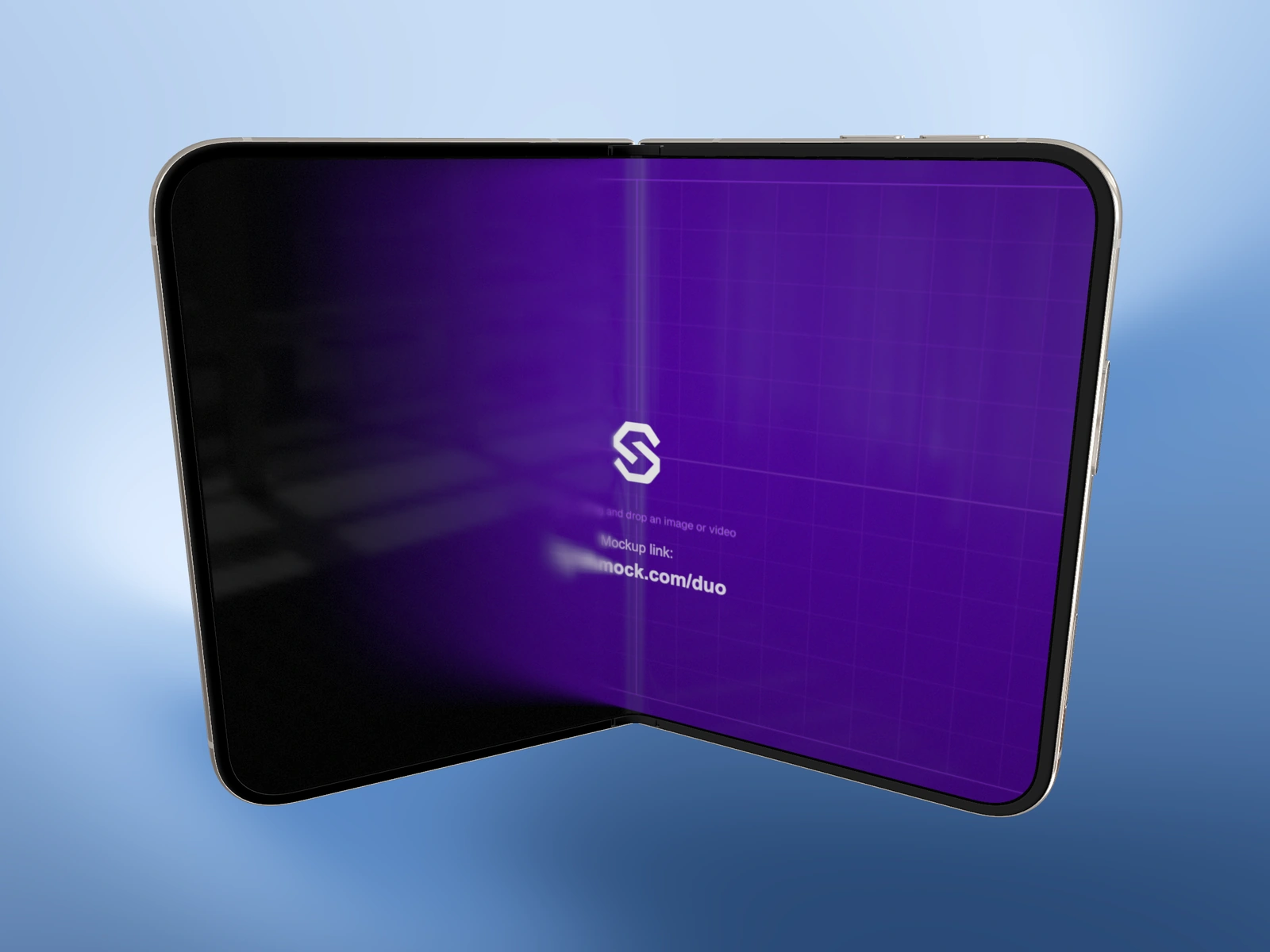
Start here · iPhone Duo
Make an iPhone Duo mockup with two screens
Build a Duo mockup with separate cover and inner artwork, check both folding poses, and prepare a clear still or animated export.
Read the guideFind your next step
The guide library
1–12 of 50
 Two screens3 min read
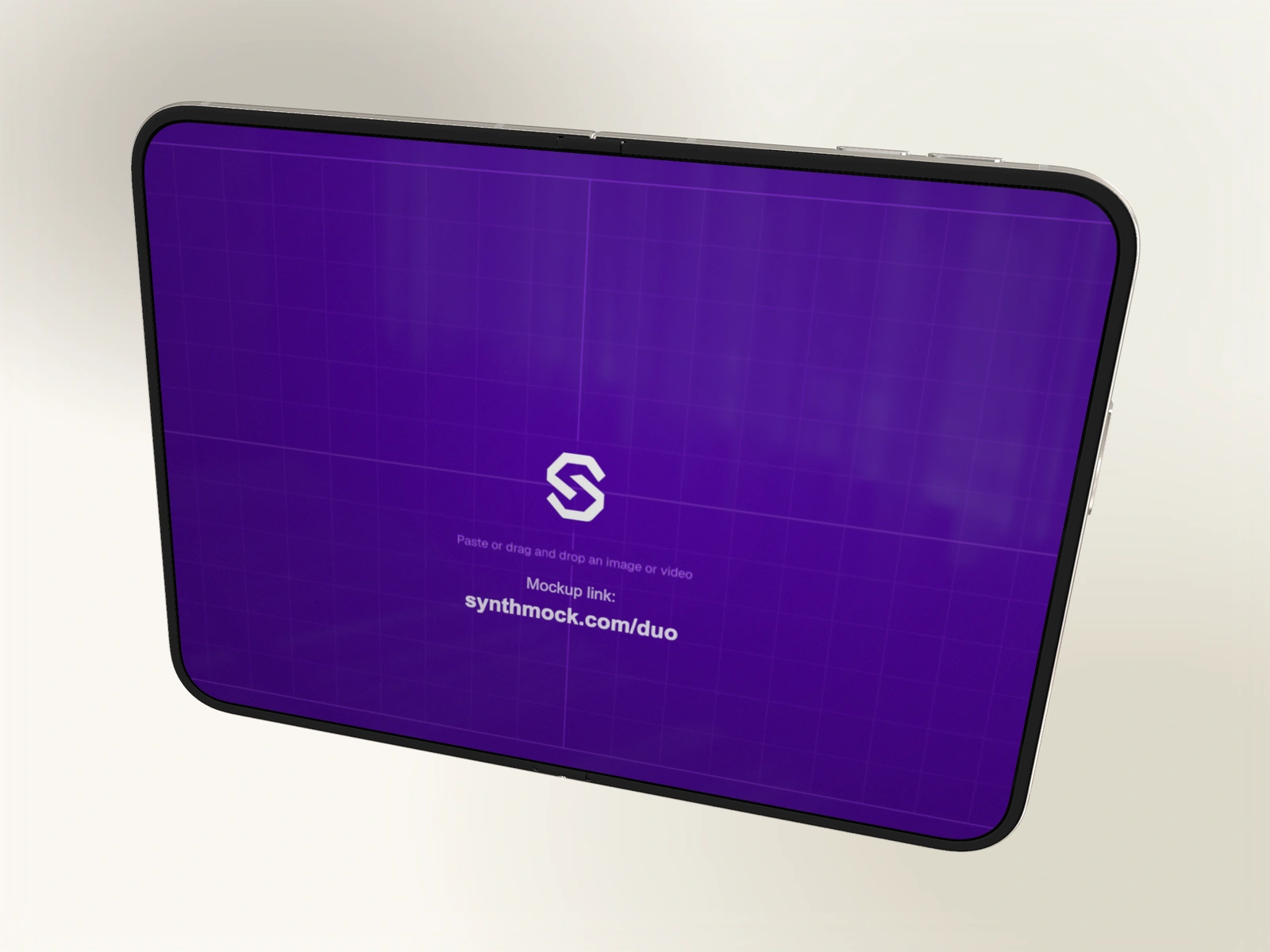
Make an iPhone Duo mockup with two screens
Build a Duo mockup with separate cover and inner artwork, check both folding poses, and prepare a clear still or animated export.
 Two screens2 min read
Replace Duo screen artwork without rebuilding the scene
Update the two screen sources in an existing Duo scene while preserving its camera, finish and motion. Check linked artwork and shot scope.
 Two screens2 min read
Prepare artwork at the right size for both Duo screens
Use the recommended Duo source dimensions, preserve proportions, and separate screen artwork size from the final export canvas.
 Two screens2 min read
Use one image on both Duo screens
Understand the Same as large source link, restore it after a cover replacement, and check the crop on both Duo displays.
 Two screens2 min read
Change the Duo cover image and keep the inner design
Replace only the small outer screen in a Duo scene, keep the large-screen source intact, and restore inheritance when needed.
 Two screens2 min read
Put a product recording on Duo’s inner screen
Add a video source to the large Duo display, pair it with a still cover, and check timing and browser support before MP4 export.
 Two screens2 min read
Fix cropped artwork or black space on a Duo screen
Find whether Duo margins come from the source image, screen proportions, folding optics or the outer composition before changing the scene.
- Camera & framing2 min read
Compose a portrait view of Duo’s inner screen
Separate device orientation, camera roll and output aspect ratio when composing a portrait Duo mockup, then verify the artwork direction.
- Camera & framing2 min read
Set the iPhone Duo fold angle
Use Duo’s Fold control for closed, partly open and fully open compositions, with camera checks that keep the display and hinge visible.
 Motion2 min read
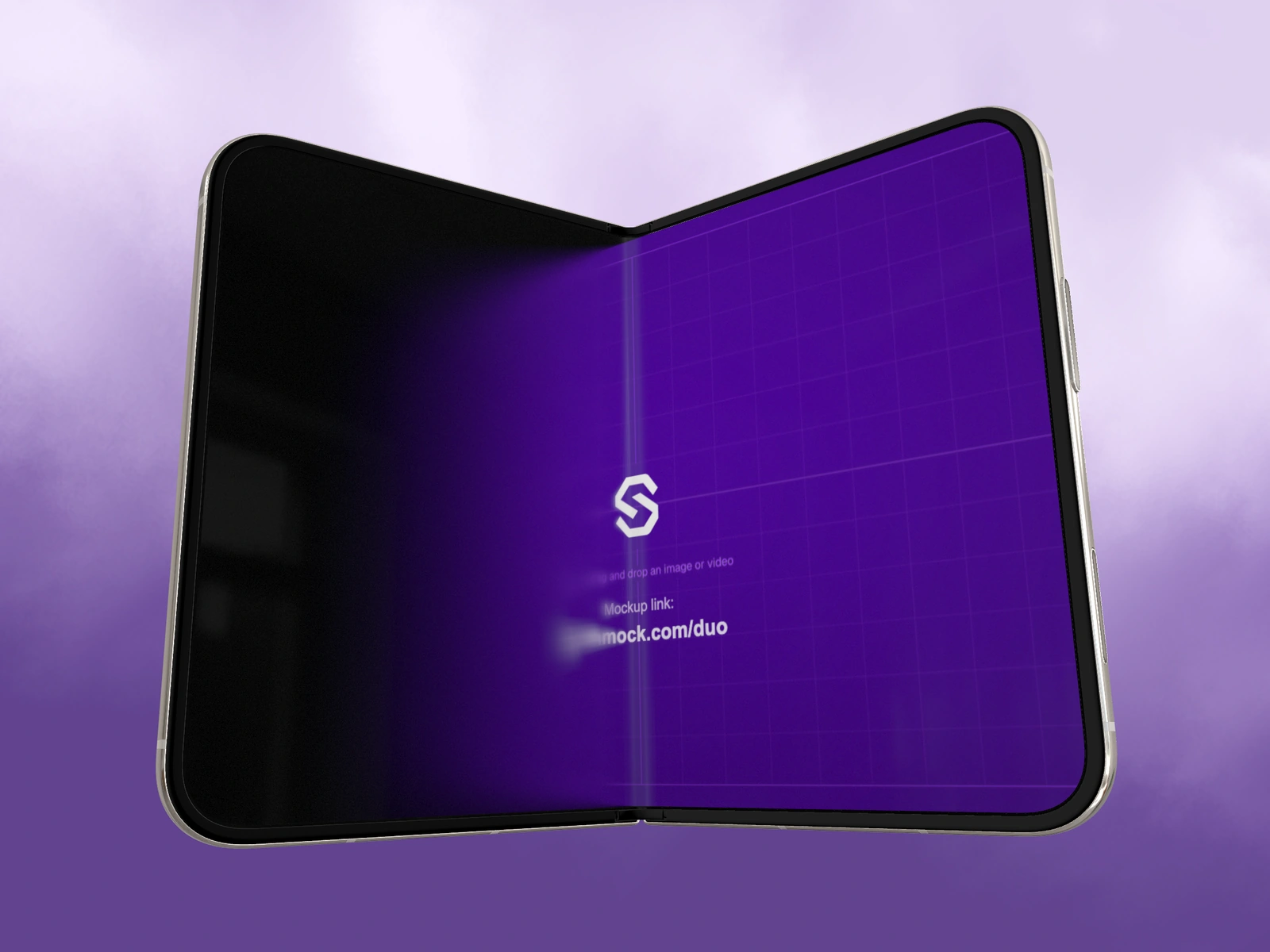
Control the screen fade during Duo folding
Compare Duo’s Fold animation optics on and off without changing the hinge pose, and choose the right treatment for readable app artwork.
- Projects & templates2 min read
Turn a shared Duo template into your own project
Preview a shared Duo template, sign in, and create your own editable project while understanding paid access and collection changes.
- Projects & templates2 min read
Save a Duo project as a reusable template
Prepare a clean Duo starting scene, save it as a template, and check the resulting preview and reusable screen setup.
Put the idea into motion
A good starting point
makes room for your work.
Explore the Duo collection, choose a scene and bring your own screens.