 SynthMock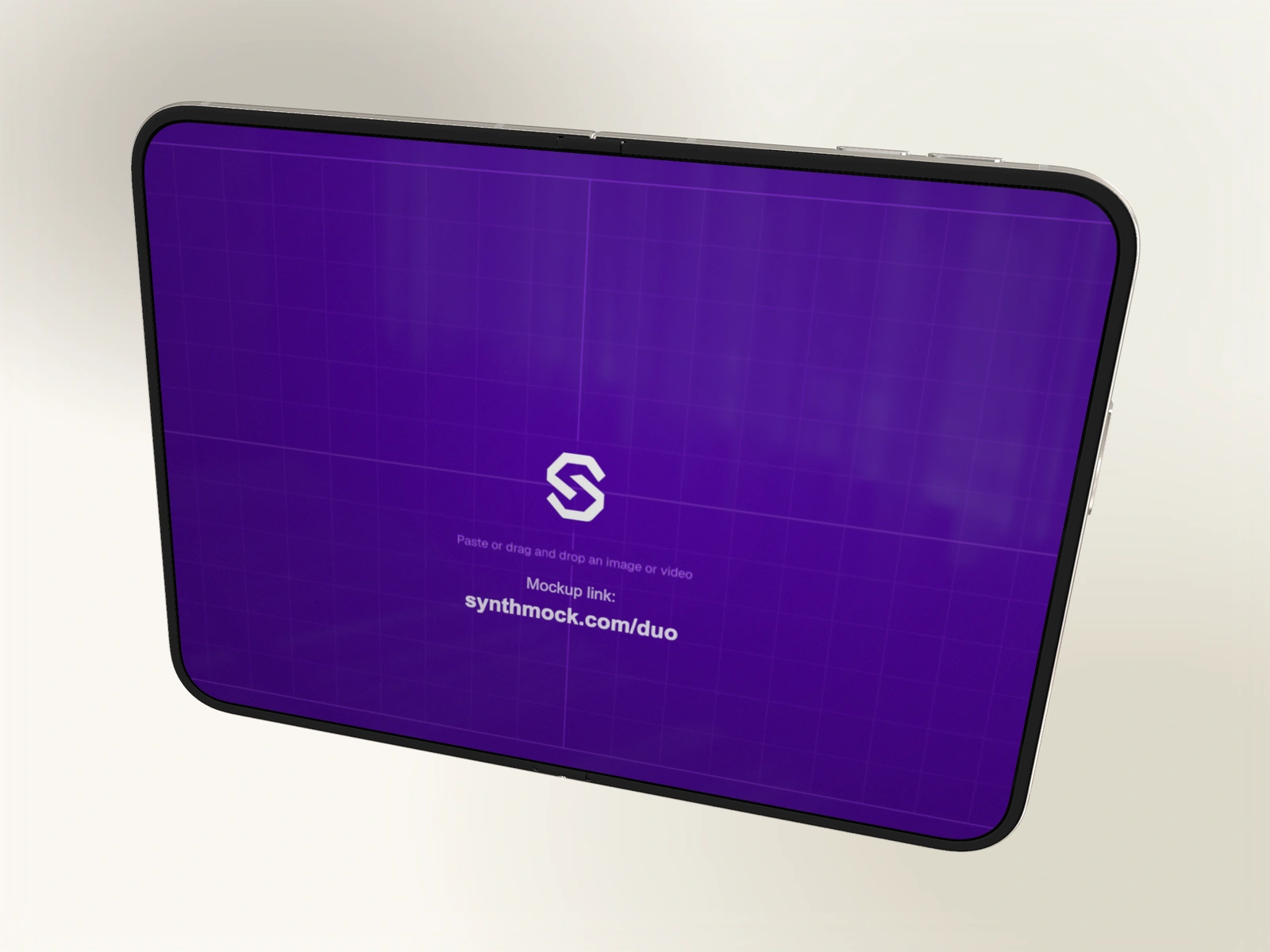
A convincing Duo presentation gives the small outer screen and the wide inner screen different jobs. Set up both sources first, then decide how the camera and fold reveal them.
Try it in SynthMock
Start with a Duo scene.
Use a reusable template as your starting point, then apply the choices in this article.
A paid plan is required to use templates and export.
Prepare two views of the same product
Start with a focused mobile view for the cover and a wider layout for the inner display. A task such as choosing a document can work outside; a larger editing workspace can be the reveal inside. Two arbitrary screenshots make the folding motion harder to understand.
Prepare the cover at 1291 × 1878 px and the inner artwork at 2670 × 1878 px, width × height. These are recommended artwork dimensions for SynthMock’s compositor, not hardware specifications. Larger files with the same proportions also work. Remove any black bars already baked into the images before uploading.
| Source | Suggested role | Recommended artwork |
|---|---|---|
| Small outer | One focused task | 1291 × 1878 px |
| Large inner | Expanded workspace | 2670 × 1878 px |
Assign the artwork and inspect the fold
Open the Duo editor, or start from a shared Duo template if you want an existing composition. Templates require a signed-in paid account to use and edit. Public browsing lets you inspect the collection first.
- Open the source controls in Look. Under Screen images, upload the wider artwork to Large inner screen.
- Upload the portrait artwork to Small outer screen. An independently assigned cover replaces the Same as large fallback.
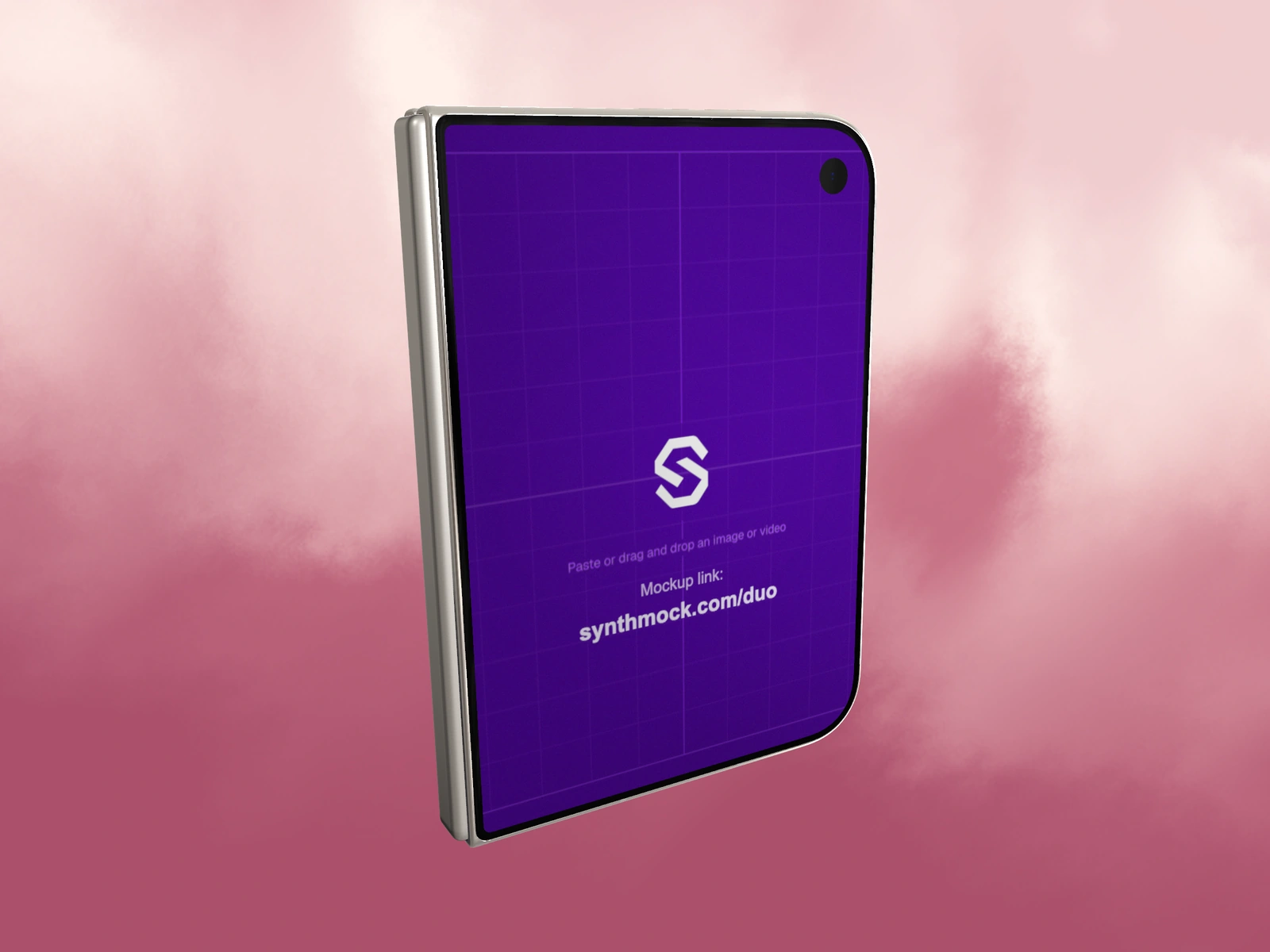
- In the device controls, set Fold to 0° to inspect the closed cover. Set it to 180° to inspect the open inner display.
- Use the Camera controls to frame each intended view. A partly open pose may need more breathing room than either endpoint.
- Choose one Finish and background. Refine Reflection and lighting until the frame reads as metal while your interface stays legible.
Finish with a screen check
Inspect the mockup at the size people will actually see it. A beautiful full-resolution render can still hide your app’s main action in a small social preview. Make sure the important controls survive the crop on both displays.
If both screens show the same image, the small source is still linked to the large source. Replace Small outer screen directly. If the display darkens or softens while partially folded, compare the Fold animation toggle: it controls screen optics, while Fold continues to control the physical pose. Paid access is required to export native images and videos.
Final pass
Before you call it finished
- Closed and open poses show the intended artwork.
- No source margins or unintended crop hide the interface.
- The finish, background and lighting form one consistent scene.
Make the next version yours.
Explore Duo templates ↗