 SynthMock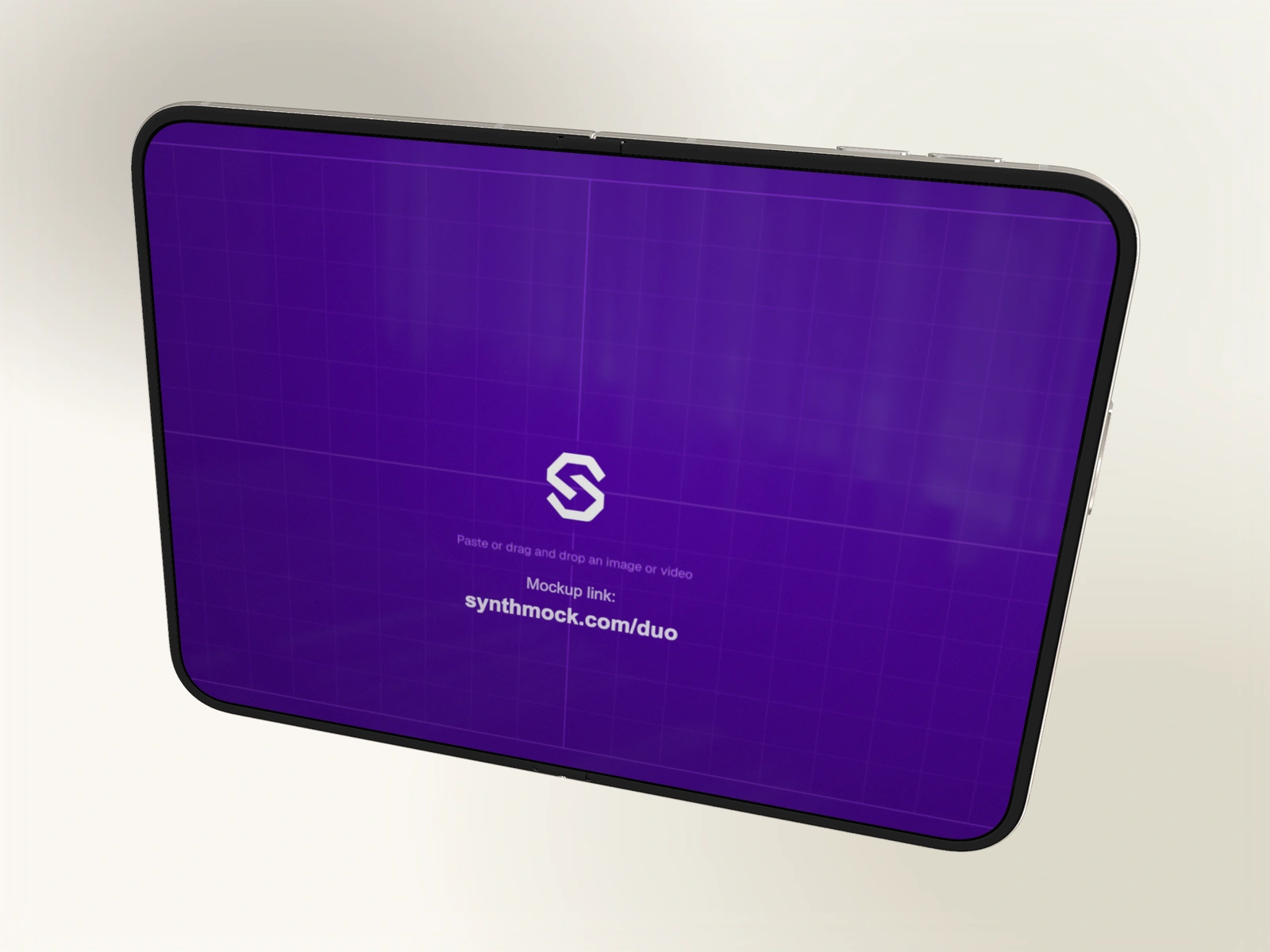
A light finish still needs a range of tones. Use a shaped reflection and controlled key light so the frame looks metallic, while the white surfaces retain detail.
Try it in SynthMock
Start with a Duo scene.
Use a reusable template as your starting point, then apply the choices in this article.
A paid plan is required to use templates and export.
Look for missing tonal variation
Choose Star White and inspect the frame, hinge and camera rings at the final angle. If all those surfaces merge into one white patch, the scene is losing the variations that describe the material. More brightness will not solve that.
Use a background that leaves a visible boundary around the phone. A pale phone on a pale background can work, but it needs a carefully placed edge highlight and some darker reflected areas. Compare the same pose before changing the composition.
Build a highlight with a visible edge
Use the lighting environment and key light to shape the frame. A metallic rail should show changes as its surface turns away from the source. Judge the small frame details and the larger white body separately; adjust the screen’s Reflection value afterward for glass readability.
- Choose a stable open or partially open pose and a quiet camera.
- Select Lightbox or Ring Glow in a scene that exposes the Lighting control.
- Rotate the environment with Light Rotation until the frame has a clear bright-to-dark transition.
- Add only as much Key Light as the scene needs; redirect it with Key Light Rotation and Key Light Height before raising it further.
- Inspect the camera rings and hinge, then check that the screen reflection has not obscured the app.
Review the exported whites
Look at a finished image on both a light and a dark page background. A composition can appear detailed in the editor’s dark surroundings yet lose its boundary when placed into a pale landing page.
If the frame becomes featureless, reduce the relevant light intensity or change its angle until detail returns. If only one surface looks dull, move the camera slightly rather than changing all lighting controls together. Keep the chosen finish constant across shots; adjust the light to reveal it instead of using a different finish to compensate.
Final pass
Before you call it finished
- The white finish contains visible tonal variation.
- Frame, hinge and camera rings remain distinguishable.
- The exported image keeps its boundary on the intended page background.
Make the next version yours.
Explore Duo templates ↗