 SynthMock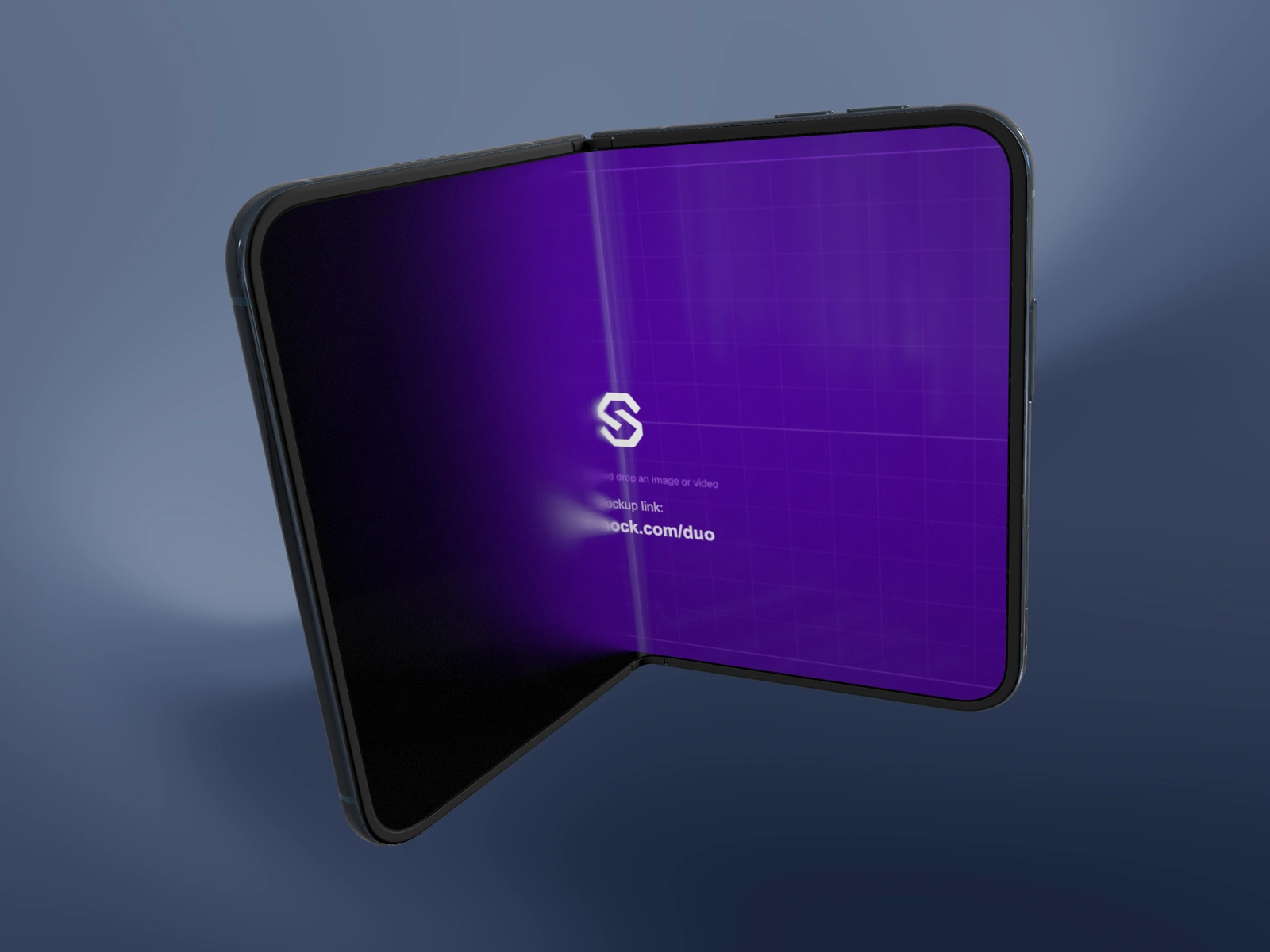
Choose the phone’s finish as part of the project’s visual identity. A change of shot should not accidentally look like a change of device.
Try it in SynthMock
Start with a Duo scene.
Use a reusable template as your starting point, then apply the choices in this article.
A paid plan is required to use templates and export.
Compare finishes with the same composition
SynthMock’s Duo model offers Night Sky and Star White in the Finish control. Compare them with the same artwork, camera and background so the difference is easy to judge. Dark finishes can separate well from lighter scenes; light finishes need controlled highlights to keep their material detail.
A reflected color is not necessarily the wrong finish. Metal and glass pick up their lighting environment. Inspect the body in more than one angle before changing the finish just because a highlight appears warm or cool.
Check each shot deliberately
When working in a sequence, read the selected shot and any active effect endpoint before editing. A control change can belong to that editing context, so verify the result throughout the project.
- Select a representative shot and choose Night Sky or Star White in Finish.
- Inspect the open display, cover and rear surfaces under the current lighting.
- Move through the remaining shots and verify the same intended finish.
- Check effect Start and End states if an unexpected change occurs during playback.
- Keep the background palette consistent unless a scene change is part of the story.
Retune the light, not the identity
Star White and Night Sky do not need identical light intensity to look equally clear. Preserve the finish while adjusting the scene so bright surfaces retain gradients and dark edges remain visible. A small light rotation can reveal the frame without making the screen harder to read.
If the phone seems to change color halfway through a move, pause at that moment. Confirm Finish first, then inspect reflections from the camera and light directions. Do not compensate for a physical highlight by animating between finish choices. Save a representative still from each shot when checking a larger campaign.
Final pass
Before you call it finished
- Every shot uses the intended Finish.
- Changes in reflections are not mistaken for finish changes.
- Both light and dark material areas retain visible detail.
Make the next version yours.
Explore Duo templates ↗